This guide explains how Control works, the Revo app for checking your business from your phone or computer: what each screen and option does, how the data is calculated and how to use the app step by step.
If you haven't signed in to the app yet, first see How to sign in to Control. If you don't have your Cegid User yet, see Cegid Revo Control 2.0: Sign-up process (Onboarding). For an overview, go back to the main Control article.
1 Before You Start
WHICH RESTAURANTS YOU SEE
Each user only sees the restaurants they have access to. If one is missing from the account selector, check with your manager or with support.
DATA THAT DEPENDS ON OTHER FEATURES
| Data in Control | What it needs to be shown |
|---|---|
| Hours, Sales/hour and Orders/hour | That your team clocks in on Revo XEF (attendance control). Without recorded hours, these indicators are not calculated. |
| Reservations | Orders linked to Revo Flow, CoverManager, Restoo or TheFork. |
| Loyalty | Orders associated with customers identified in Revo InTouch. |
| Diners | The number of diners entered on each order. |
| Channels (Delivery, Terrace…) | The platform or integration associated with each order in Revo XEF. |
2 How It Works
THE FLOW IN FOUR STEPS
- You choose three things: the accounts (restaurants), the period and whether you see amounts with or without taxes.
- Control retrieves the data for those accounts and that period.
- It shows the figures, their trend and their change compared with the comparison period.
- If you tap a row in a ranking (an employee, a room, a discount, a payment method), the list of orders behind that figure opens.
WHERE THE DATA COMES FROM
| Period | Source | What it means |
|---|---|---|
| Today | Direct query to Revo XEF | Includes open and closed orders. Excludes cancelled and merged orders. |
| Any other period | Sales history | It is updated every 5 minutes, so it may reflect the most recent changes with a small delay. |
WHAT CONTROL REMEMBERS
- The selected period is kept when you change screens and is stored in the web address, so when you copy the link you keep the period.
- On this device, Control remembers the last Analytics tab, the last Benchmarking metric and the language.
ON MOBILE
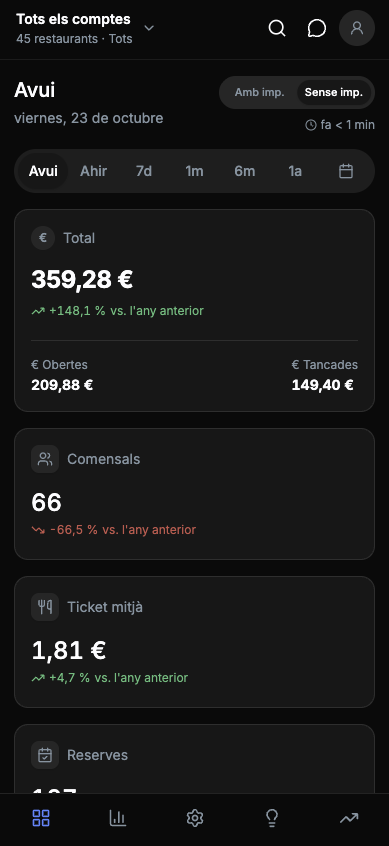
On narrow screens the side menu is replaced by a bottom bar with one icon per section, in this order: Dashboard, Analytics, Benchmarking and the other sections. At the top you still have the account selector, the order search and your profile.
UPDATE INDICATOR
Next to the data you can see when it was obtained, for example “Less than a minute ago”. Use it to know whether you are looking at recent information.
3 Common Selectors
Account selector
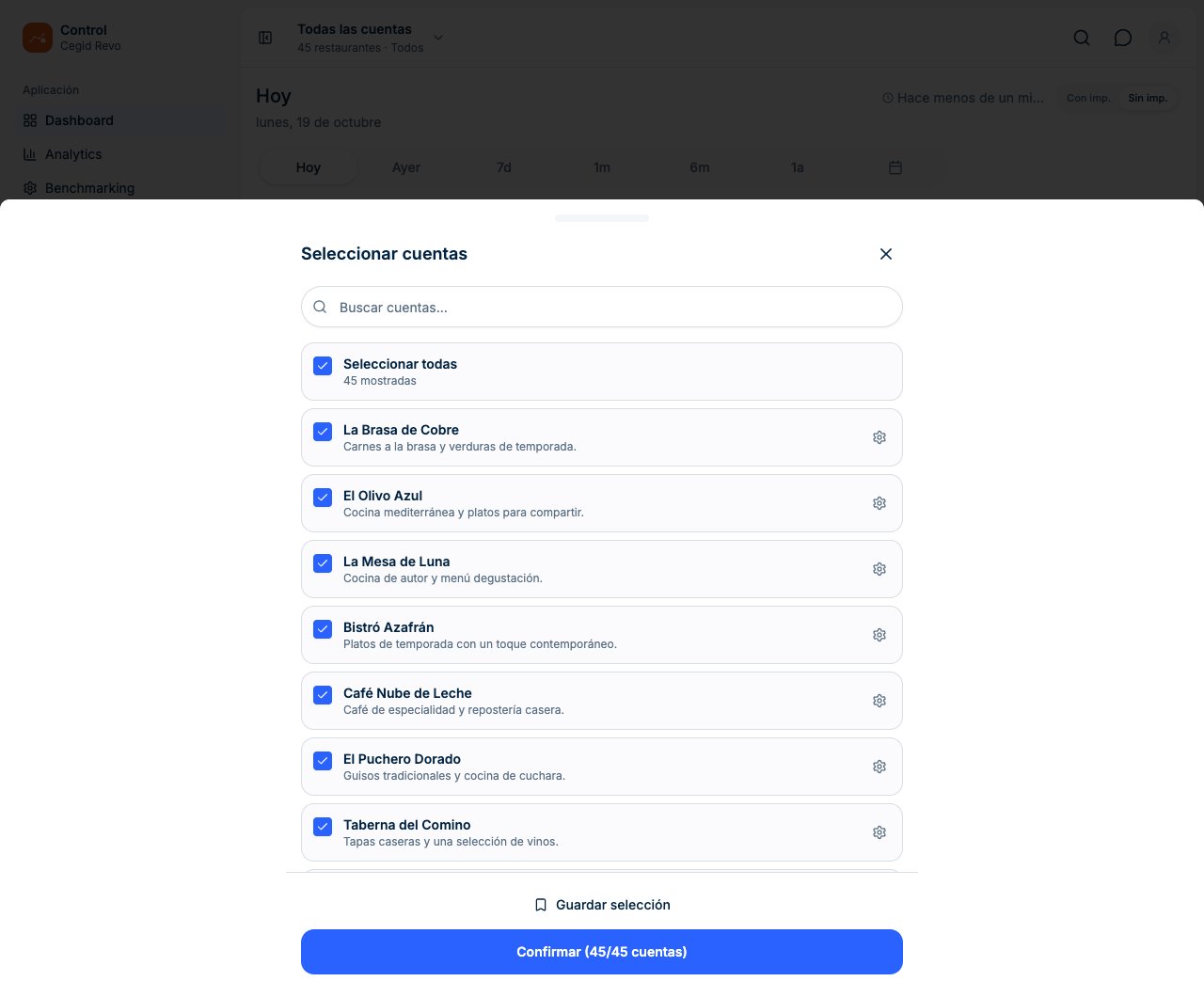
What it is. Each restaurant connected to your user is an account. The selector decides which ones you see data for, and all screens are recalculated with that selection.
| Option | What it is for | Effect |
|---|---|---|
| Search accounts… | Find a restaurant by name. | Filters the list. If there are no matches, “No account matches your search” appears. |
| Select all | Tick all restaurants. | You see the total of all of them. The selector shows “All”. |
| Only | See only one restaurant. | Leaves only that location ticked. |
| Confirm (x/y accounts) | Apply the selection. | The number shows how many accounts are ticked out of those available. |
The selector summarizes your choice: “All accounts”, “Custom selection” (for example, “2 of 5 restaurants”) or “None selected”. With no accounts there is no data to show.
When to use it. Use “Only” to analyze one location and all accounts for the overall view of the group.
Saved groups
What it is. A named selection of restaurants, so you don't have to tick them every time.
- Tick the restaurants you want to group.
- Type a name in “Group name…”.
- Tap Save. Control confirms with “"name" saved”.
The group appears in “Saved groups” with its number of accounts. Tap it to use it.
- If the same selection already exists, Control shows “Already saved as…” with the group name.
- If a restaurant in the group stops being available to you, it is removed from the selection. If none are left, Control warns you that no account in the group is available any more.
Period and comparison
What it is. The date range of all the figures. You change it with the period tabs under the title of each screen (Today, Yesterday, 7d, 1m, 6m, 1y). The calendar icon at the end opens the custom period.
| Option | Dates covered |
|---|---|
| Today | Today. |
| Yesterday | The whole previous day. |
| 7d | From 7 days ago until yesterday. Does not include today. |
| 1m | From one month ago until yesterday. |
| 6m | From six months ago until yesterday. |
| 1y | From one year ago until yesterday. |
| Custom | The range you choose between Start and End. |
The tabs apply the period instantly. For a custom period, a panel opens where you confirm with Apply.
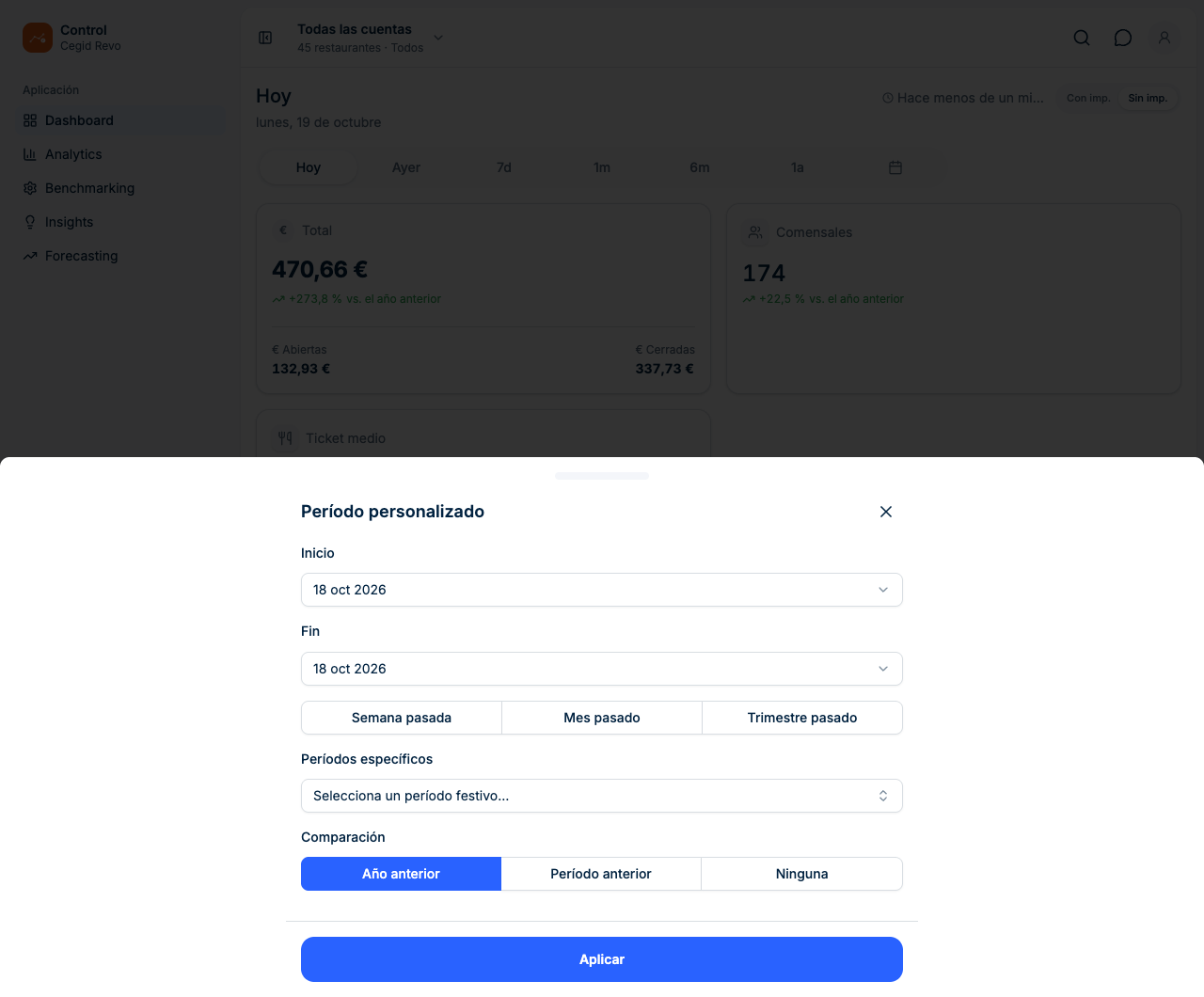
CUSTOM PERIOD
- Tap the calendar icon at the end of the tabs. The panel asks for Start and End, offers the quick access options and the specific periods, and lets you choose what to compare with.
- Choose the Start date and the End date. You can't choose today or future dates: the last selectable date is yesterday.
- Quick access: last week, last month and last quarter.
- Specific periods: Christmas, Holy Week, New Year, Saint John's Day and Saint Stephen's Day, with a search box.
COMPARISON
Each figure shows its change compared with another period. How that period is chosen depends on what you have selected:
| Selection | Compared with |
|---|---|
| Preset periods (Today, Yesterday, 7d, 1m, 6m, 1y) | The same dates last year. |
| Specific period (for example, Christmas) | The same period last year, with its name. |
| Custom · Previous year | The same dates one year earlier. This is the default option. |
| Custom · Previous period | A range of the same length right before yours. |
| Custom · None | No comparison is shown. |
With taxes / without taxes
What it is. A switch with two positions: “With tax” and “Without tax”. All amounts on the screen, including those in orders and rankings, follow the position you choose. By default, Control shows amounts without taxes.
When to use it. Use “Without tax” to analyze the real sales of the business and “With tax” to match receipts or payments. Some metrics, such as table time in Benchmarking, are not amounts and do not change.
4 Dashboard
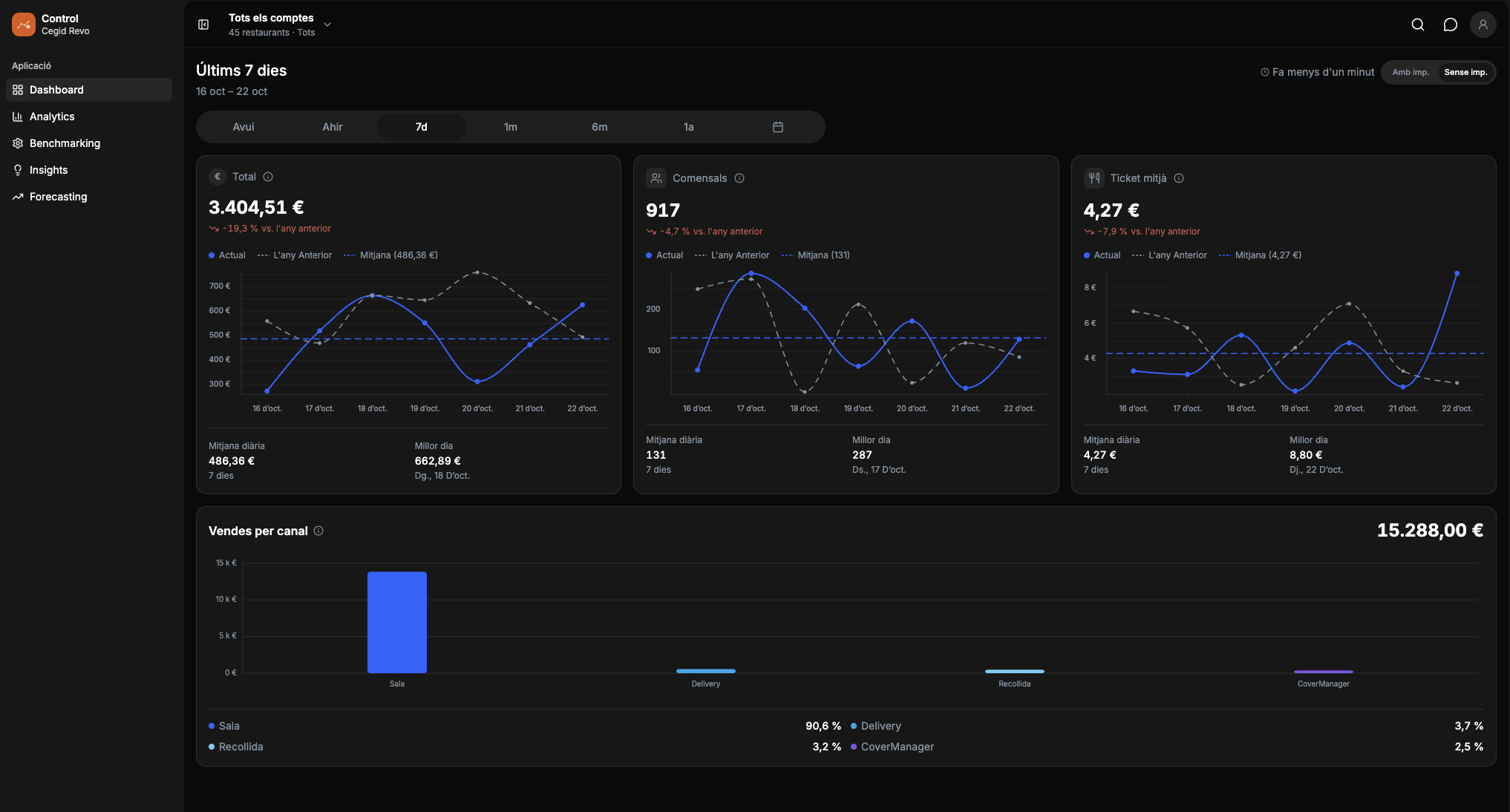
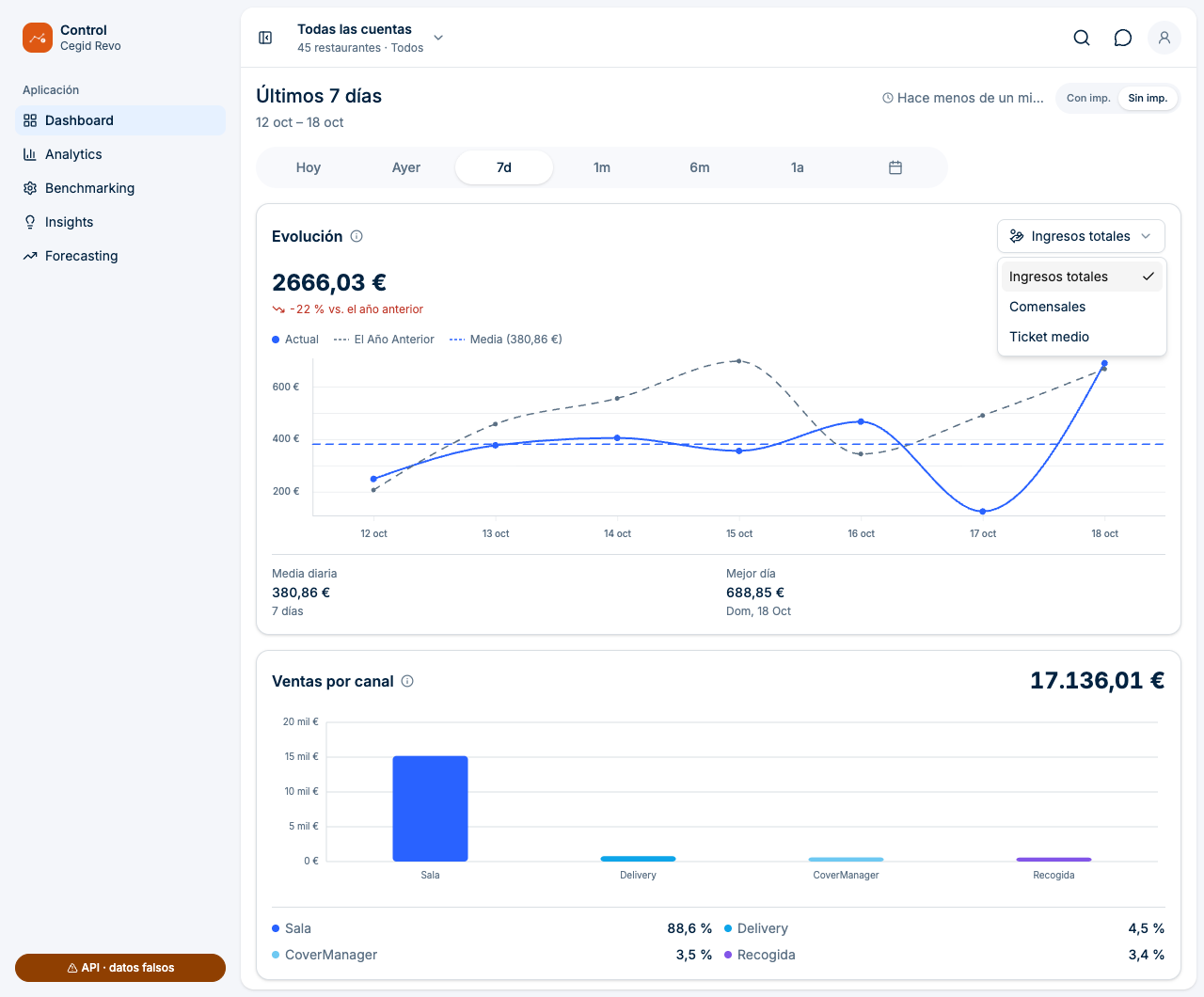
It is the home screen. It answers one question: how am I doing in this period? It recalculates everything when you change accounts, period or taxes.
| Item | What it shows | How it is calculated |
|---|---|---|
| Total revenue | Amount sold, split into closed and open orders. | Sum of the order amounts. Today includes open and closed orders, and excludes cancelled and merged ones. |
| Diners | People served. | Sum of the diners entered on each order. They are not unique customers. |
| Average ticket | Average amount per order. | Daily sales value; with several days, the daily values are averaged. |
| Sales by channel | Breakdown between Dining room, Delivery, Terrace, Pickup, Other and Unknown. | According to the order's source platform. “Dining room” groups orders without a platform, including bar and takeaway. “Unknown” means an unidentified platform. |
HOW IT CHANGES DEPENDING ON THE PERIOD
- Several days: the “Trend” card appears. It shows a chart with the current period, last year and the average, and below it the “Daily average” and the “Best day”. With the selector in the corner you choose what to see: Total revenue, Diners or Average ticket.
- A single day: the “Reservations” card appears instead of the trend charts.
Each indicator shows its change compared with the comparison period (see “Period and comparison”). Tap a card's information icon to read how it is calculated.
If there is no activity, “No data for this period” appears. Try other dates or other restaurants.
5 Analytics
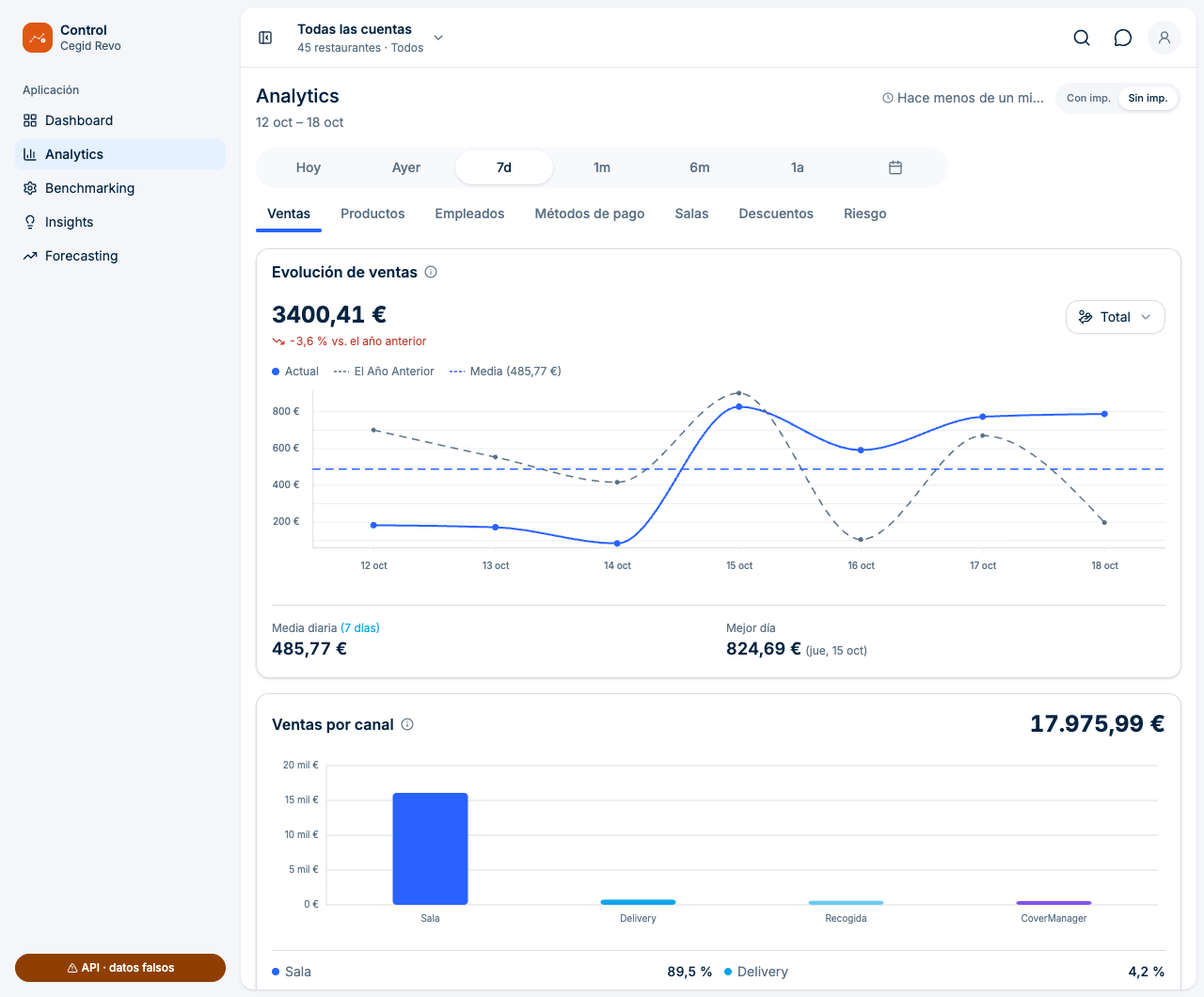
Analytics has the period, the tax switch and the tabs at the top. Control remembers the last tab you viewed. If they don't all fit on the screen, swipe the tab bar.
Sales
What it is for. Understanding how much, when and how you sell.
- Total revenue, with closed and open orders.
- Average ticket: order amount divided by the number of orders. It is per order, not per diner.
- Diners: sum of the diners on each order. A person who comes back counts each time.
- Orders: in the restaurant, delivery and with a reservation. Reservations are orders linked to Revo Flow, CoverManager, Restoo or TheFork, not the total reservations on those platforms.
- Loyalty: orders from customers identified in Revo InTouch, with orders, amounts and average ticket. It does not measure unique customers, recurrence or retention.
- Sales trend with the average and data such as the best day, week, month or hour, and trend by hour to see the busiest time slots.
When to use it. To find out whether a drop or rise comes from fewer orders, fewer diners or a lower ticket.
Products
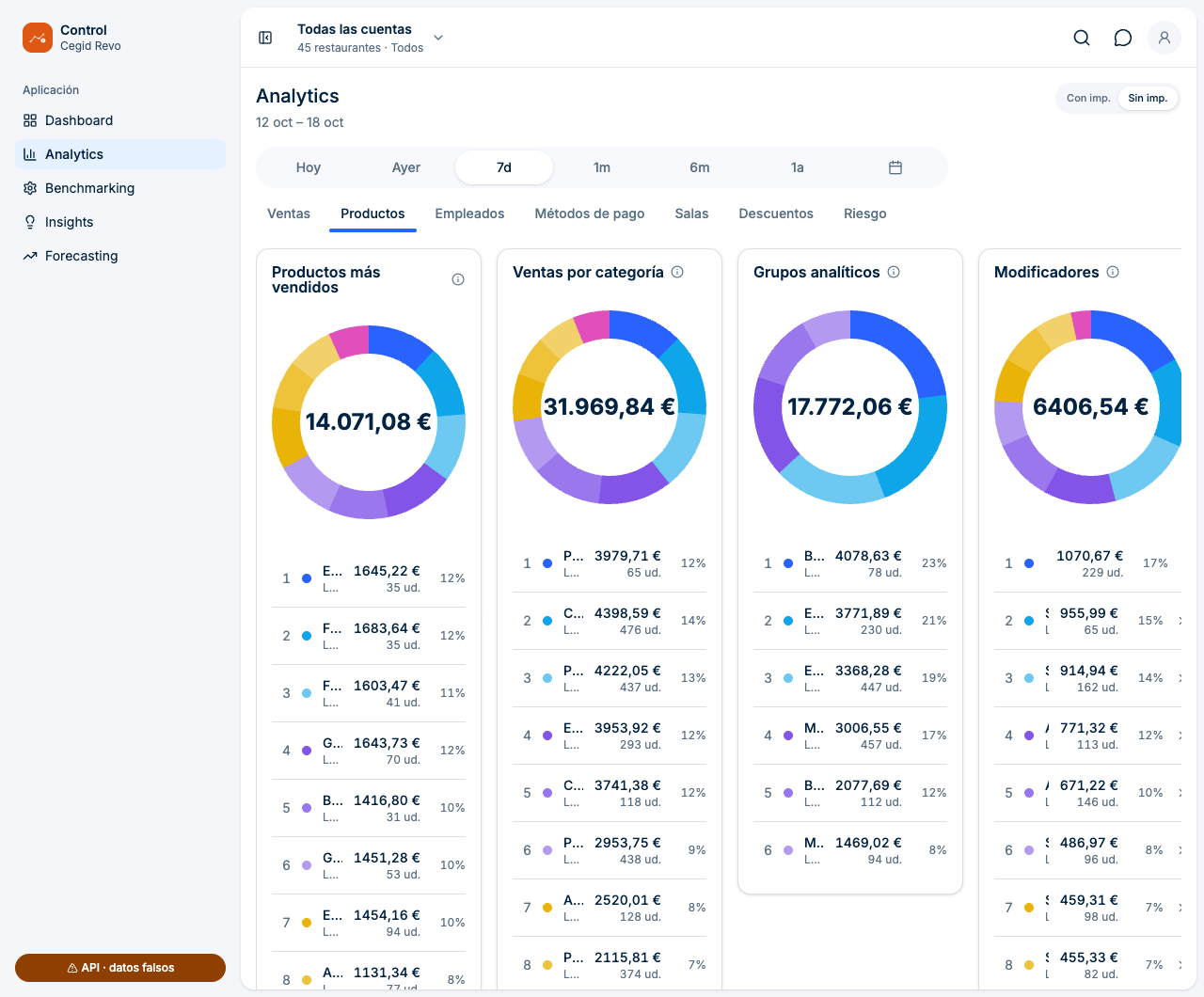
What it is for. Knowing what sells and what contributes the most.
| View | What it shows |
|---|---|
| Best-selling products | Ranking by units and revenue. |
| Sales by category | Amounts and units grouped by category. |
| Modifiers | Extras or preparation changes, with the products associated with each one. |
| Analytical groups | Sales grouped by type, such as food or drink. |
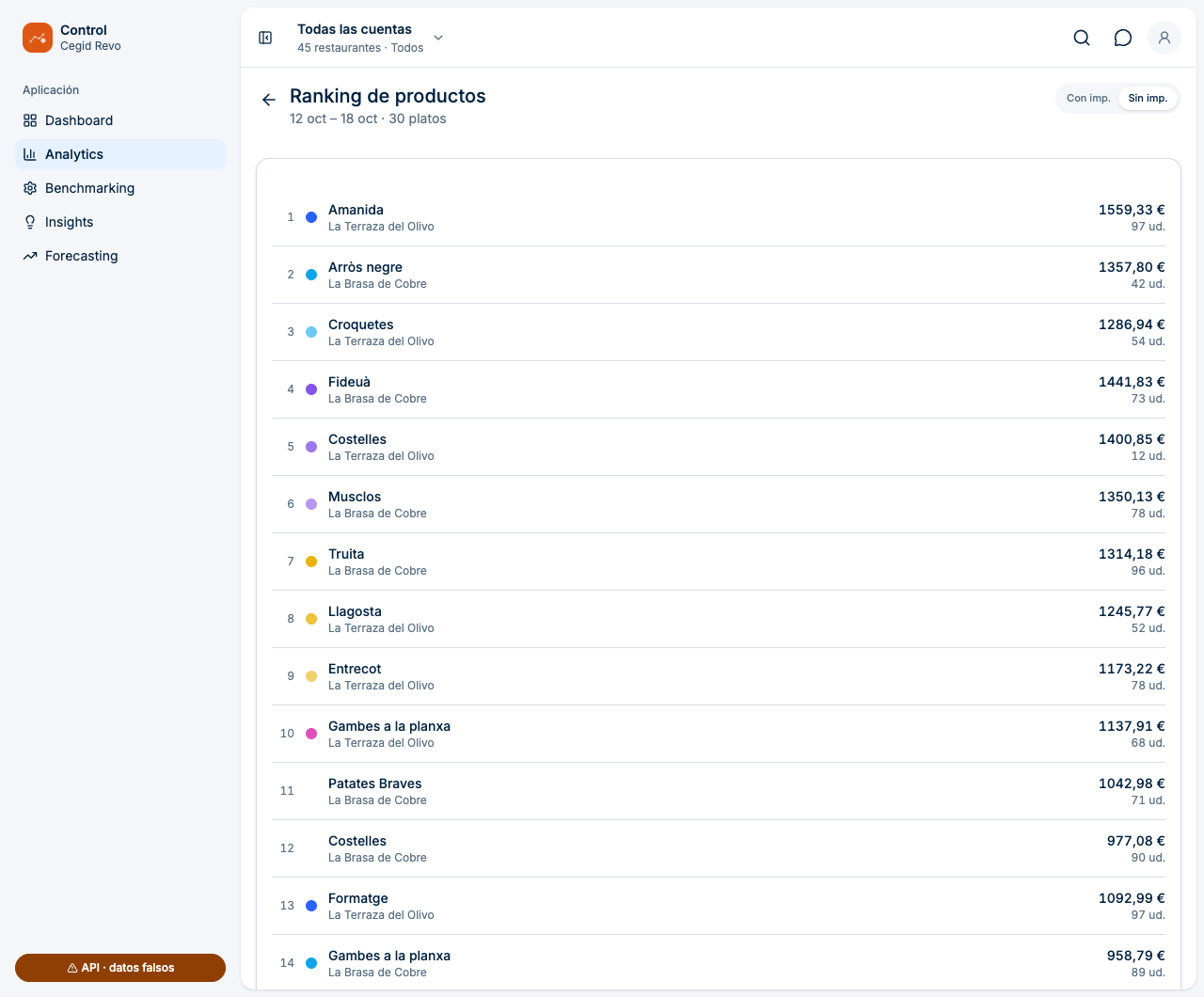
| All dishes | “See more” opens the “Product ranking”: each dish with its restaurant, amount and units. |
The percentage is calculated on the amount of the products included in the chart, not on all of the restaurant's sales. The “Grouped by variants” option adds up all the variants of a product, such as sizes.
Employees
What it is for. Comparing the team's performance.
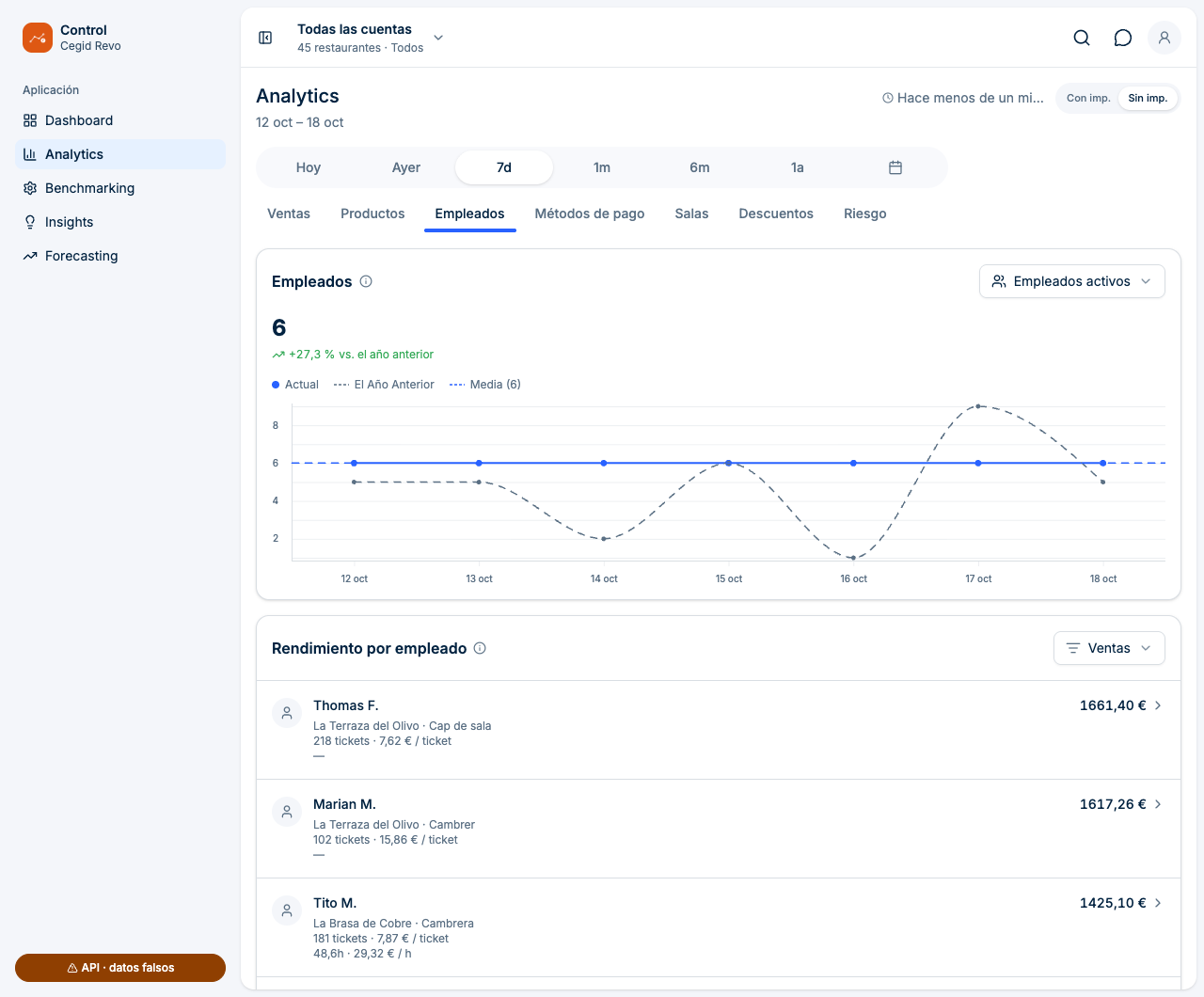
- Trend chart with a metric selector: Active employees, Total hours, Sales/hour and Orders/hour. It compares with last year and shows the average.
- Active employees: people with activity on orders or attendance records in the period. This is not the whole staff or who is working right now.
- Total hours clocked by the team. Depending on the period, Control may also add sales and ticket totals.
- Sales/hour and Orders/hour: amount or orders attributed to each worker divided by their clocked hours. Without recorded hours they are not calculated.
- Performance by employee: ranking with restaurant, position, tickets, average ticket and hours. The drop-down in the corner changes the sort criterion (for example, Sales).
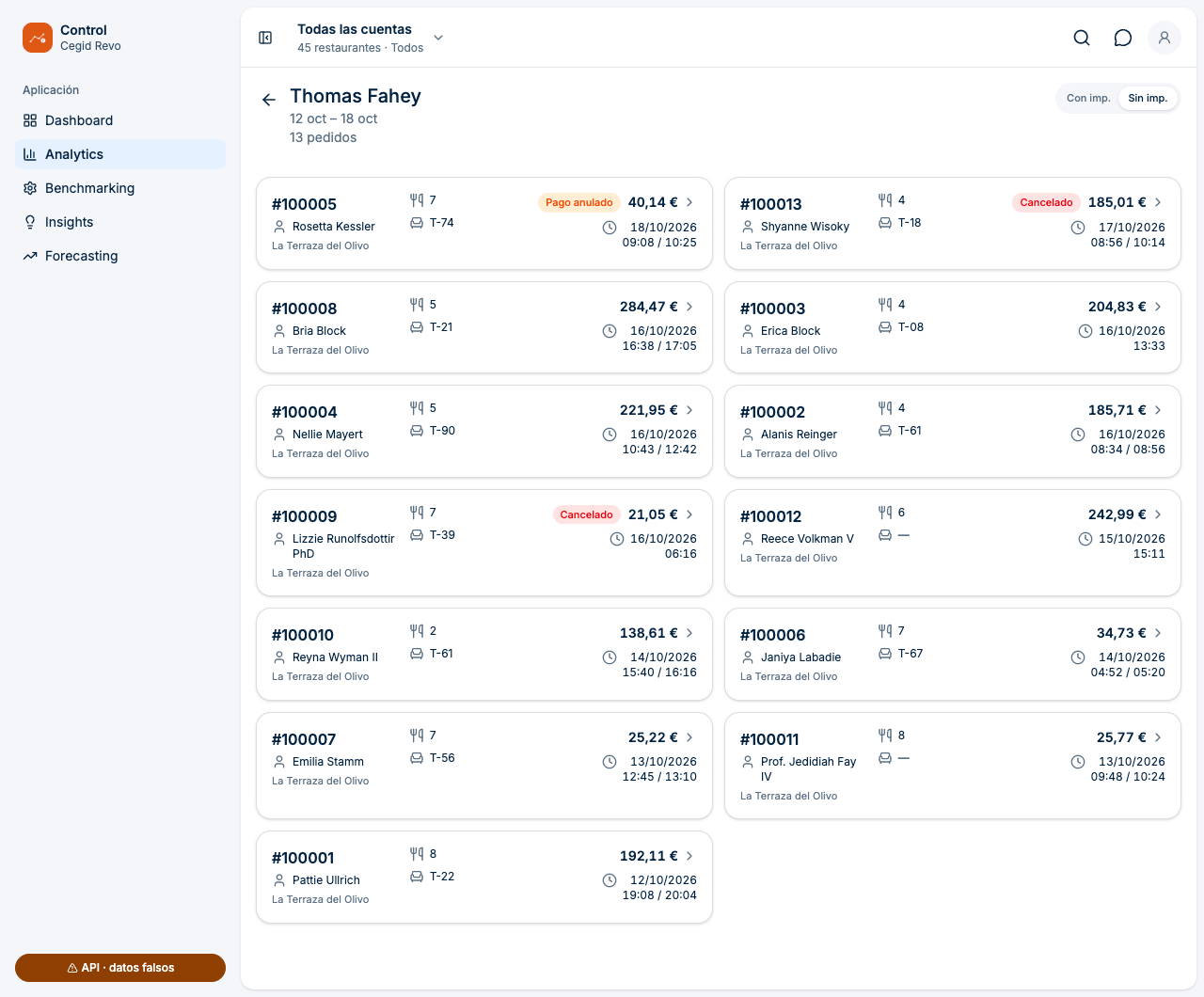
What happens when you tap a row: the list of that person's orders opens, with their name, the period and the number of orders. The arrow in the corner takes you back to Analytics. In the history, tips are attributed to whoever records the payment, who may be a different worker.
Payment methods
What it is for. Seeing how your customers pay.
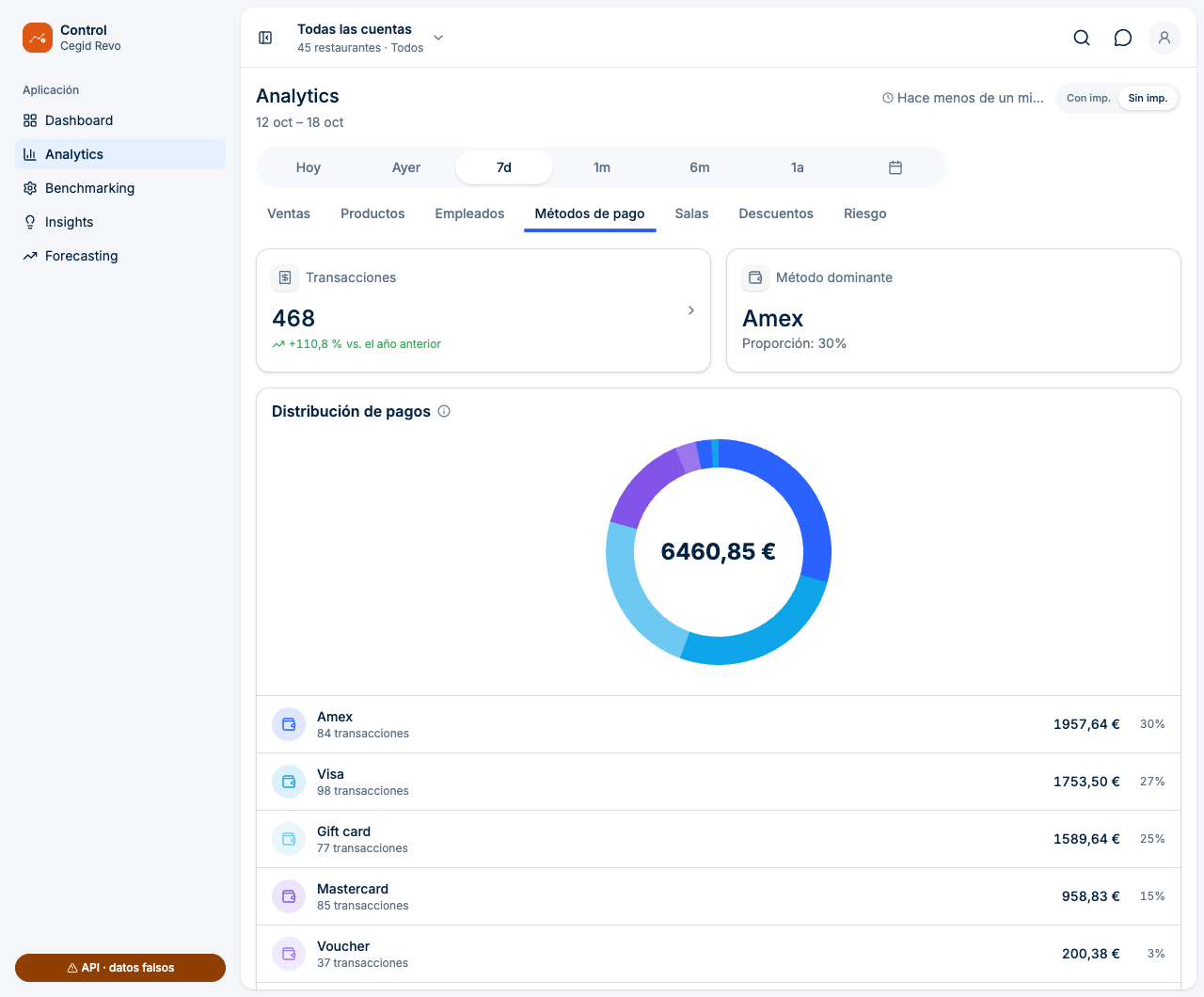
- Payment distribution: amount and share of each method.
- Dominant method and number of transactions.
Voided payments are not included and one order can have several payments. The percentage is calculated on the total of the payments included. Tap a method to see the orders where it was used.
Rooms
What it is for. Finding out which areas of the venue perform best.
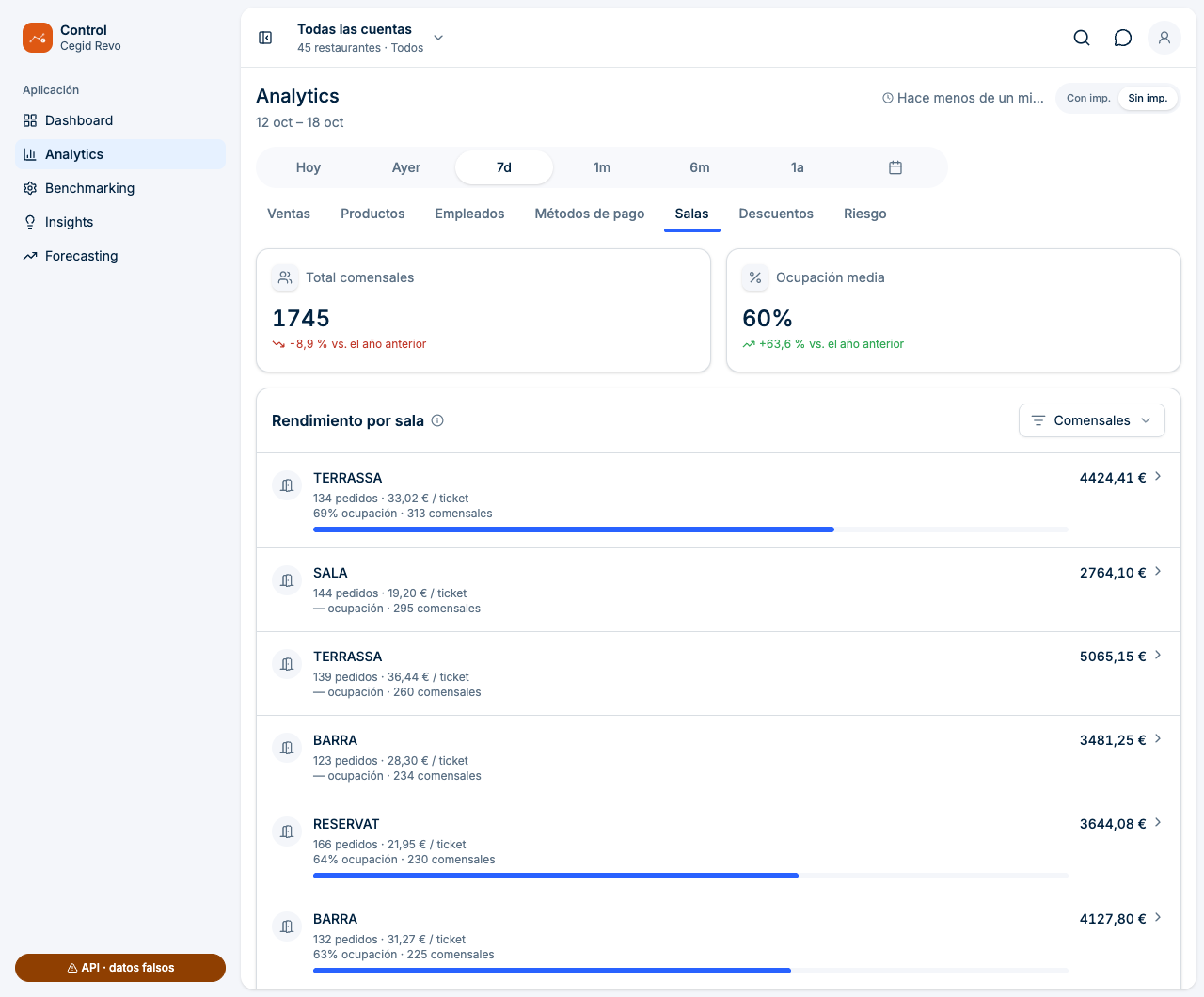
- Total diners and Average occupancy.
- Performance by room: orders, diners, average ticket and amounts.
Tap a room to see its orders.
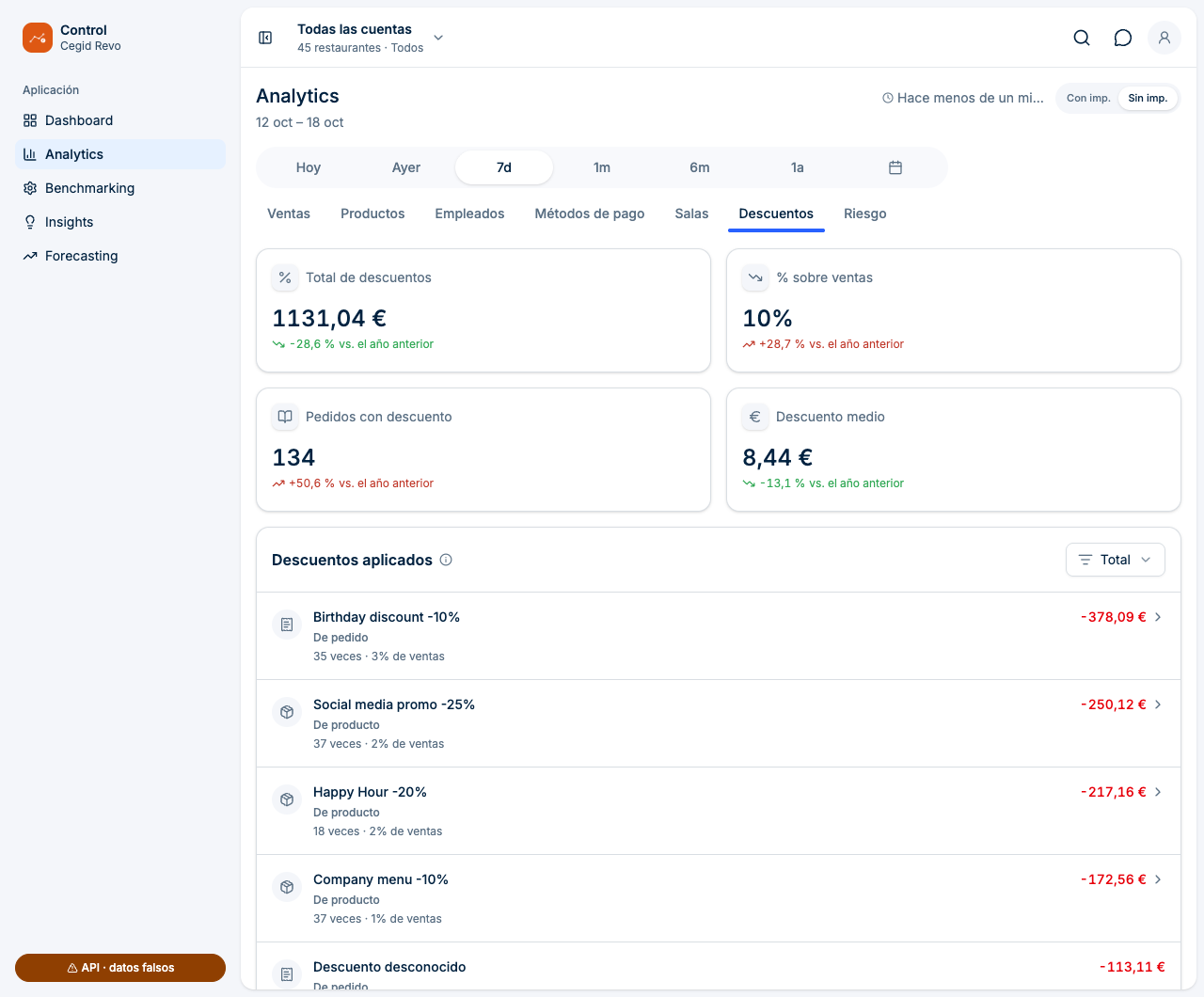
Discounts
What it is for. Measuring how much you sell with a discount and which ones weigh the most.
- Total discounts, Orders with discount, Average discount and % of sales. The percentage compares the discounted amount with sales after discounts.
- Discounts applied: ranking with amount and number of times. Unidentified ones appear as “Unknown discount”.
- Each discount is either Product or Order level.
What happens when you tap a discount: you see the affected products (with discounted units and amount) or the orders where it was applied.
Risk
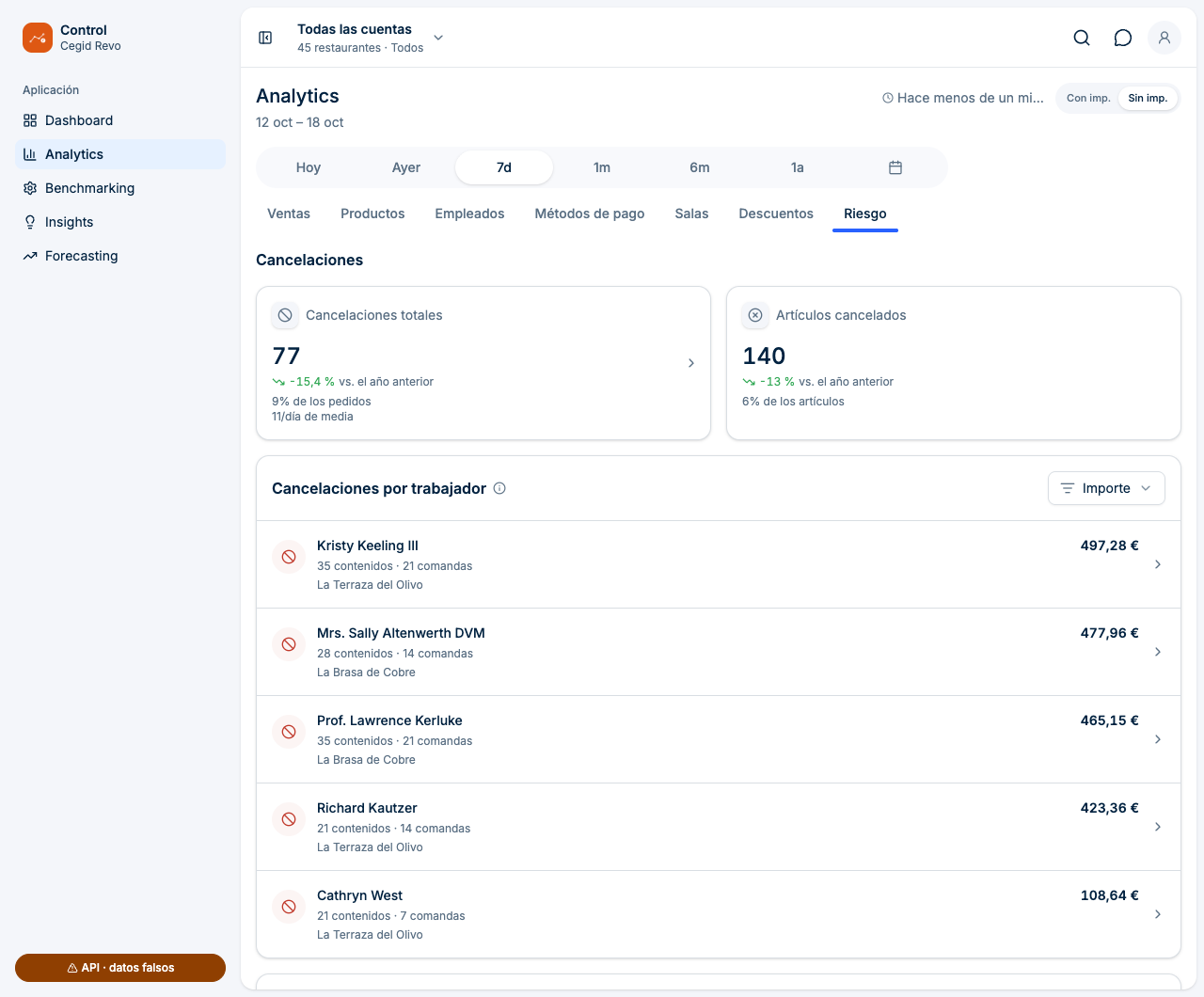
What it is for. Spotting operations that are worth reviewing. These are starting data, not conclusions about anyone.
| Block | What it contains |
|---|---|
| Cancellations | Total cancellations (with % of orders and daily average), cancelled items, breakdown by employee and by reason: customer doesn't show up, order error, excessive waiting time, customer changed their mind and product unavailable. |
| Payments | Voided payments (recorded and then voided; the record is kept) and refunds, with amount and number of operations, grouped by who performs them. |
| Cash drawer | Openings without payment: times the drawer was opened without an associated payment, by employee. |
The “See orders with cancellations” link opens the period's cancelled orders.
6 Orders
Orders works with one restaurant at a time. Choose the Account (with the search box “Search account…”) and then how to search with “Search orders by”.
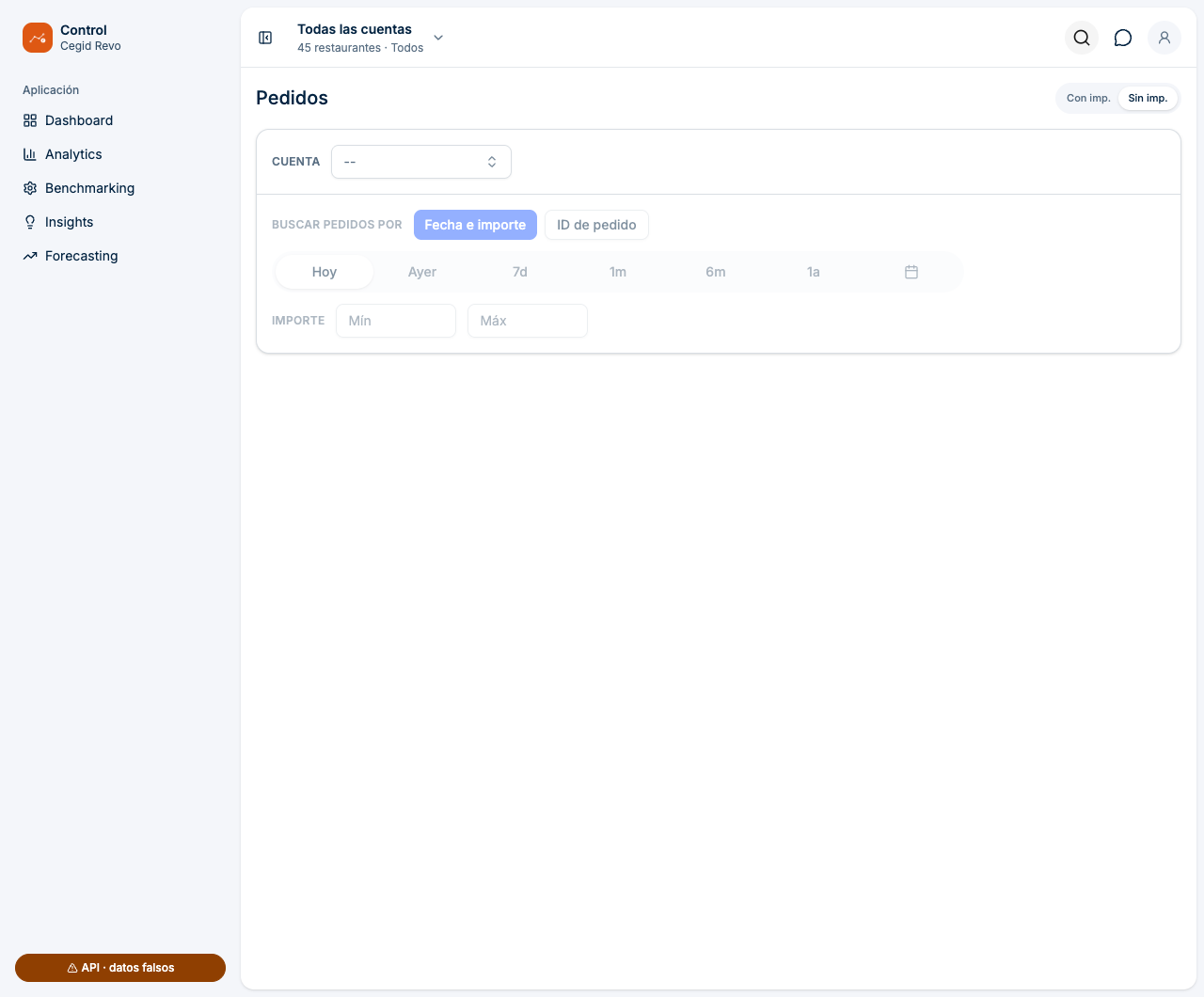
- Choose the period with the selector (by default, today).
- To narrow it down, enter a Min and/or Max amount. The maximum must be equal to or greater than the minimum.
- The list updates by itself and shows “n orders” next to the period.
Result. The restaurant's orders that meet the filter, loaded in batches as you scroll through the list. Amounts follow the With tax / Without tax switch.
- Type the number in “Order ID”.
- If it exists, its card appears.
Result. Searching by ID only finds today's orders. If there is no match, Control shows “No order found with that ID today”. For orders from other days, use “Date and amount”.
Order card and details
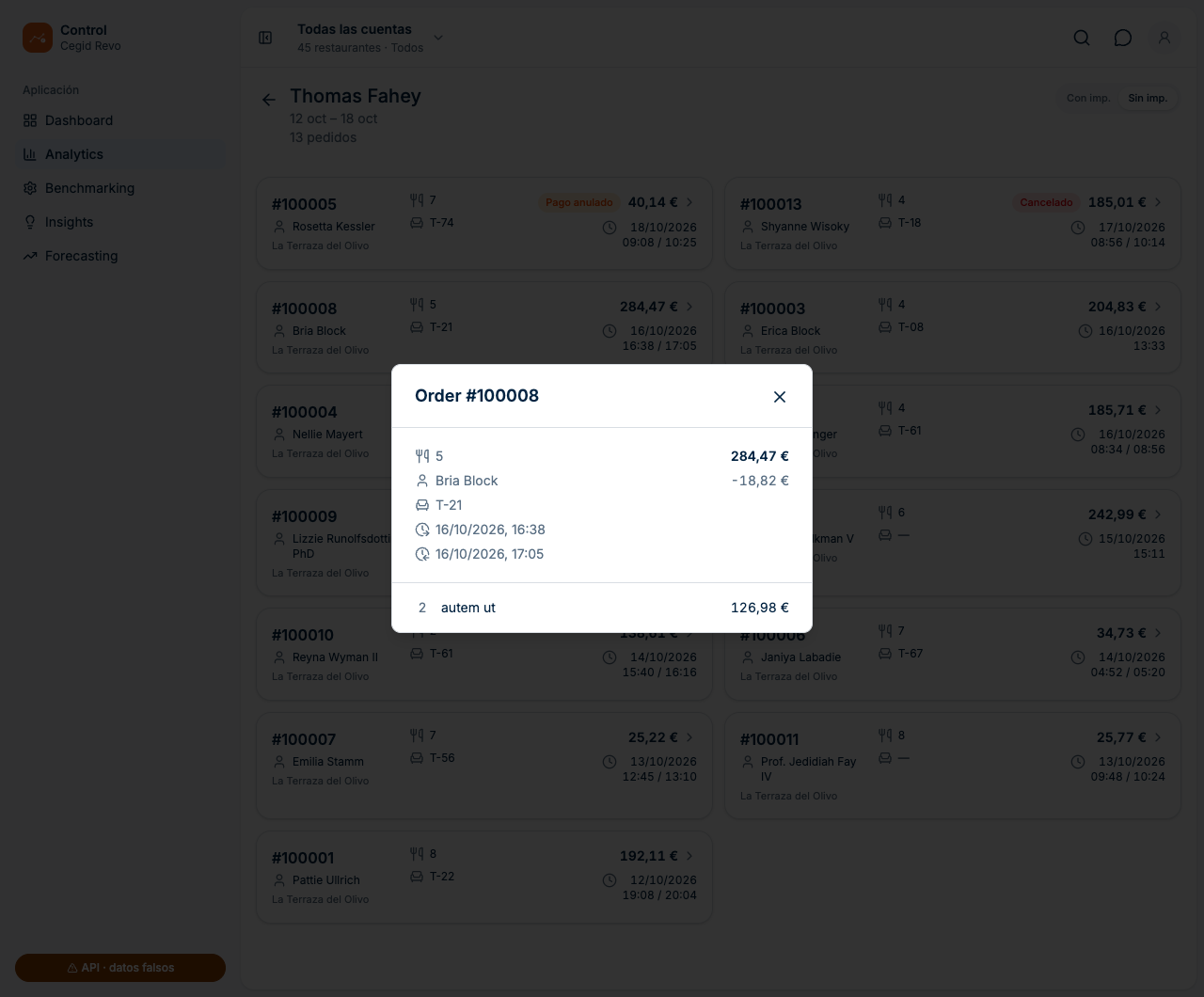
The card shows the order number (#), the employee, the restaurant, the diners, the table, the total amount and the opening and closing times. It can carry two labels:
- Cancelled: the order was cancelled.
- Payment voided: the order has a payment that was recorded and then voided.
The details open when you tap the card. They show the order sheet (diners, employee, table, opening and closing), the total, the discount if there is one and the list of items with their quantity and amount. If the order has no registered items, “No items” appears.
WHICH SCREENS TAKE YOU TO ORDERS
Order lists also open from the Analytics rankings: employees, rooms, payment methods, discounts and cancellations. You arrive already filtered by that row and by the current period.
7 Benchmarking
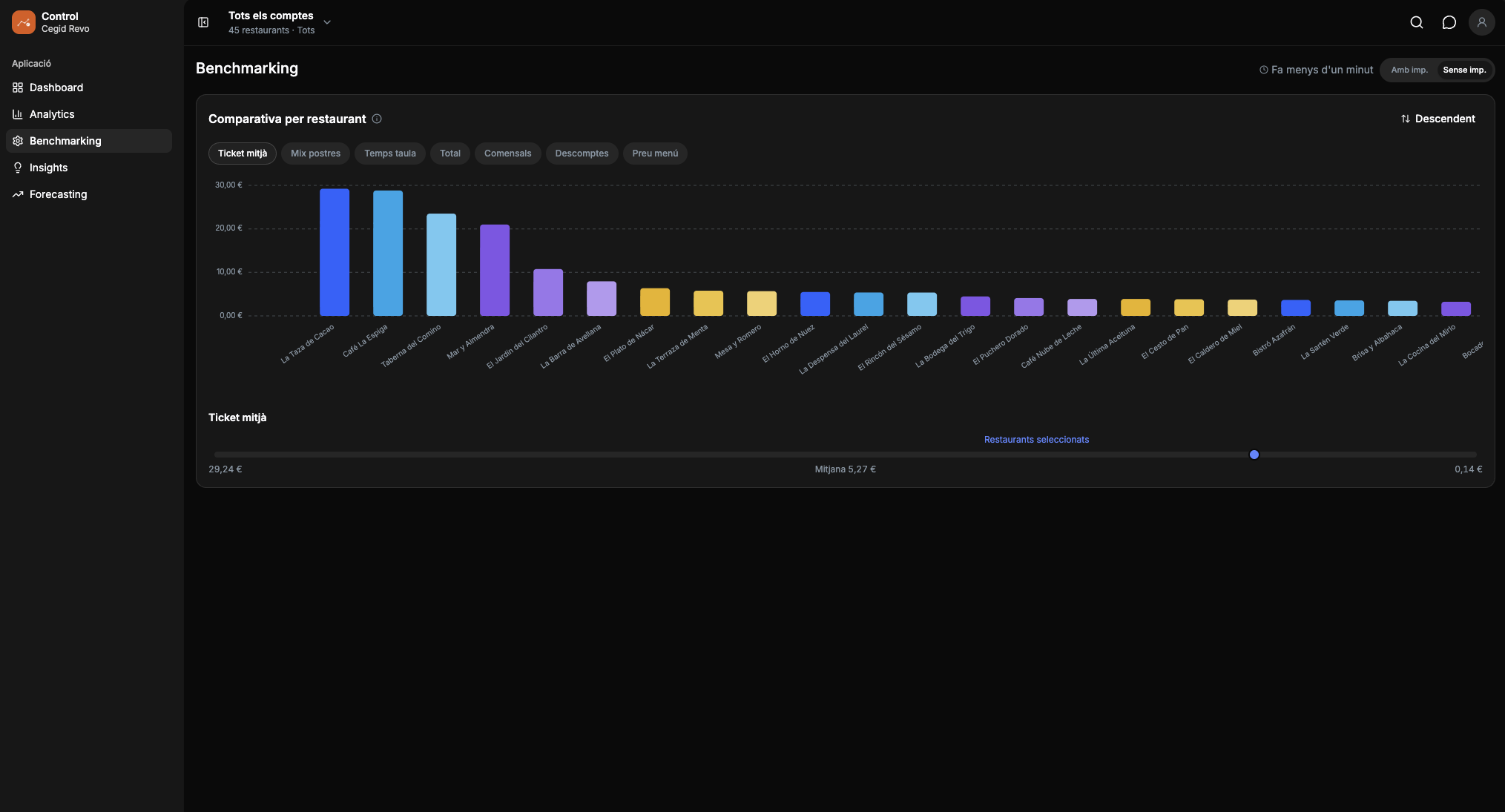
Benchmarking puts your selected restaurants side by side. You need to tick at least 2 in the account selector. With fewer, Control shows “Select at least 2 restaurants”.
METRICS
The top bar offers seven metrics: Average ticket, Dessert mix, Table time, Total, Diners, Discounts and Menu price. These are the most common:
| Metric | What it compares |
|---|---|
| Average ticket | Order amount divided by the number of orders. |
| Table time | Minutes that tables stay occupied. |
| Total | Today's sales for each restaurant. |
| Diners | Today's diners for each restaurant. |
HOW TO USE IT
- Tick 2 or more restaurants in the account selector and tap Confirm.
- Go to Benchmarking and choose a metric in the top bar. Swipe if they don't all fit. Control remembers the last one you viewed.
- Change the order with the Descending / Ascending button.
- Tap a restaurant's bar to highlight it. Tap again to remove the selection.
Result. One bar per restaurant with its value and a scale with the group's Average, Maximum and Minimum. When you highlight a restaurant, the marker moves from the average to its value.
8 Profile And Settings
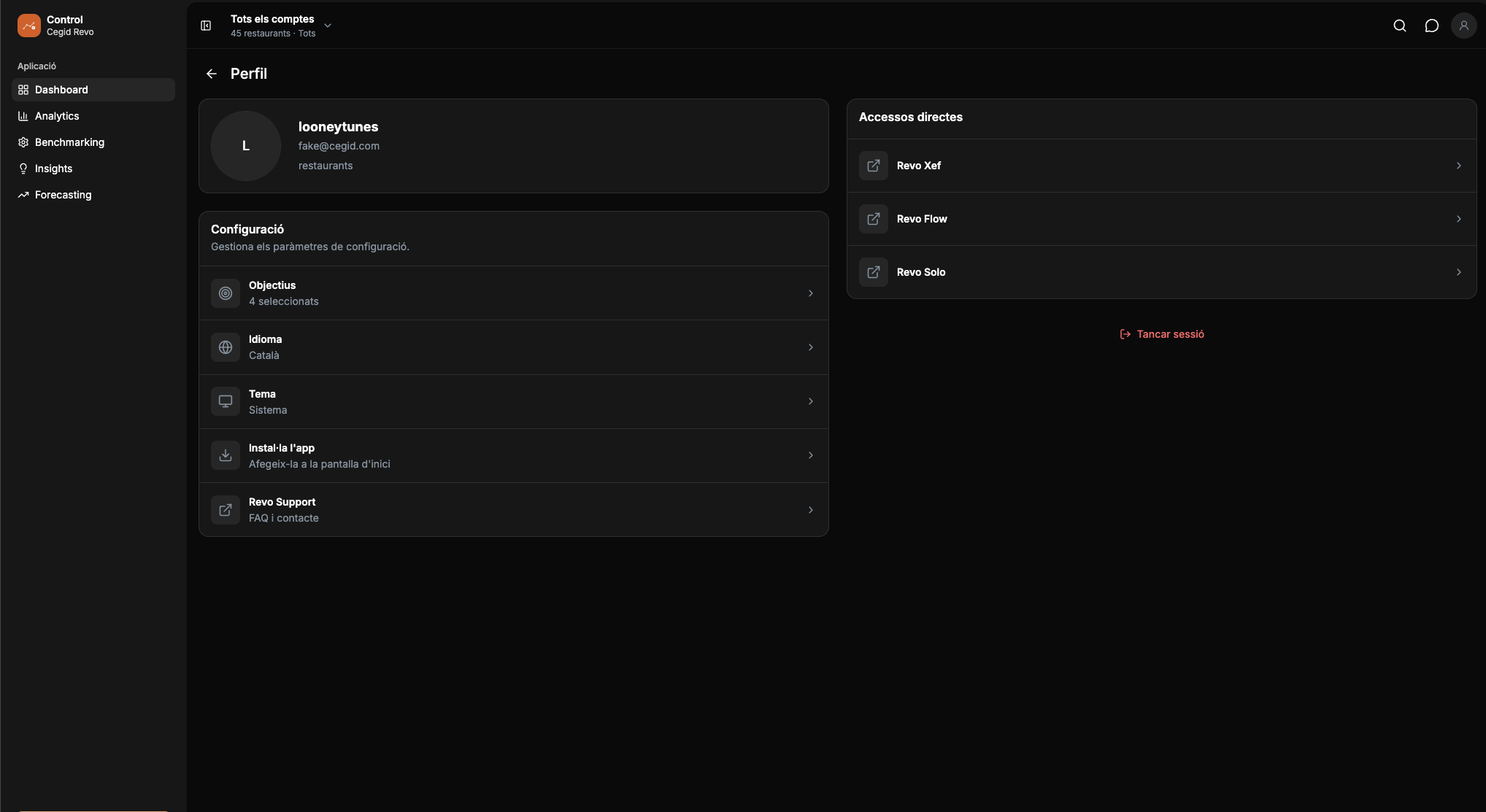
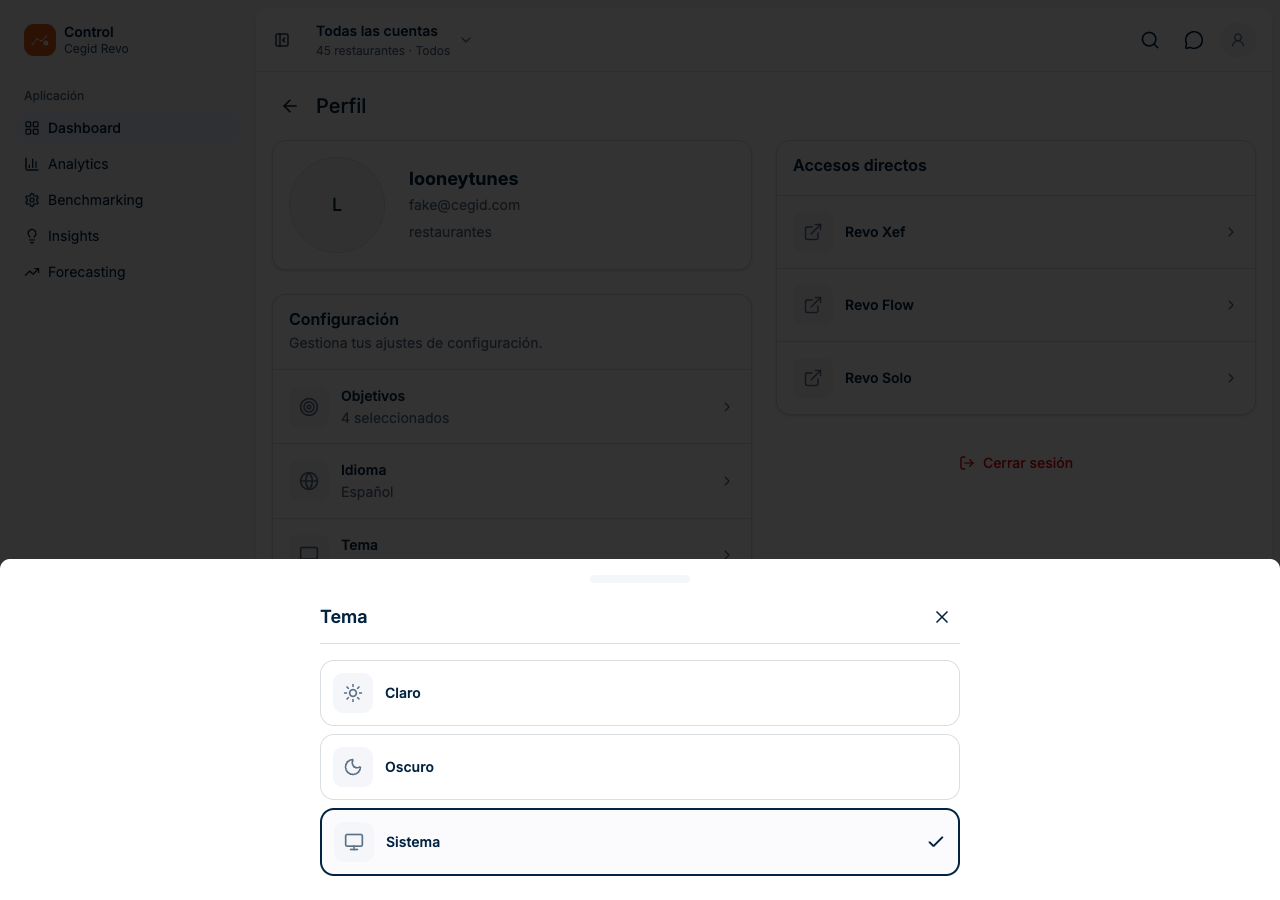
Profile shows your user and email, the Settings block and the Shortcuts card.
Language
Changes the language of the whole app. Tap Language and choose English, Català or Español. The change is immediate and Control confirms with “Language updated”.
Theme
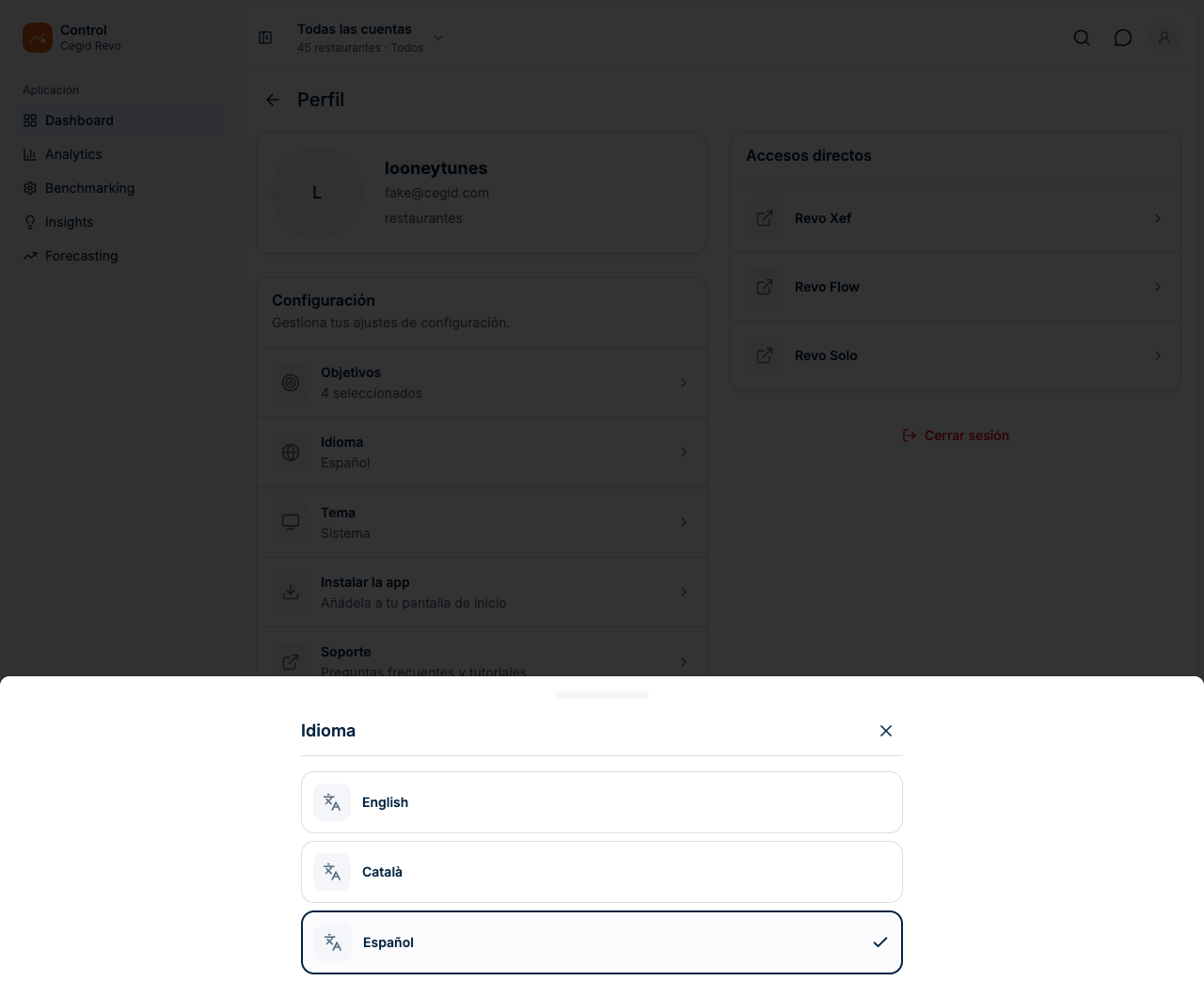
Tap Theme and choose Light (always light colors), Dark (always dark colors) or System (follows your device settings). Control confirms with “Theme updated”.
Shortcuts and support
The Shortcuts card opens your products in a new tab: Revo Xef (POS and dining room management), Revo Flow (reservations and waiting list) and Revo Solo (delivery and takeaway). The Support option opens the Help Center with frequently asked questions and tutorials.
9 Practical Examples
See how yesterday went compared with last year
- Open the Dashboard and choose Yesterday as the period.
- Check Total revenue, Diners and Average ticket.
- Read the change next to each figure: it compares with the same day last year.
- To see the reason, go to Analytics > Sales and check the trend by hour.
Result. You know whether the difference comes from orders, diners or average ticket.
Compare two restaurants
- Open the account selector, tick the two locations and tap Confirm.
- Go to Benchmarking and choose Average ticket.
- Tap the bar of one of them to see its value against the average.
- Switch to Total and Diners to complete the comparison.
Result. You see which location is above or below the group average in each of today's metrics.
Find a specific order
- Open Orders and choose the Account where it was placed.
- If it is from today, select “Order ID”, type the number and open the card.
- If it is from another day, select “Date and amount”, choose the period and narrow it down with Min and Max.
- Tap the card to see its items and totals.
Result. You see who served the order, the table, the times and what was consumed.
Review an employee's cancellations
- Go to Analytics > Risk and choose the period.
- In “Cancellations”, look at the breakdown by employee and by reason.
- Tap “See orders with cancellations” to open the affected orders.
- Open each order to see its items.
Result. You have the specific orders behind the figure, so you can review them in context before drawing conclusions.
See which discount weighs the most
- Go to Analytics > Discounts and choose the period.
- Look at “% of sales” and “Average discount”.
- In “Discounts applied”, find the one with the highest amount.
- Tap it to see the affected products.
Result. You know which discount concentrates the amount and which products it affects.
Save a group of restaurants by area
- In the account selector, tick the restaurants in the area.
- Type a name, for example “Downtown area”, and tap Save.
- Next time, choose it in “Saved groups”.
Result. You go from the overall view to one area in a single step.
Do you still have questions about how to interpret the figures? See Revo Control 2: Frequently Asked Questions.